Set up raspbian and a ssh connection on a Raspberry Pi 3
- 207 words
- 2 min
Download raspbian
First we have to download raspbian iso on raspberrypi.org. Here we download the Raspbian Buster Lite, we don't need a graphical interface.
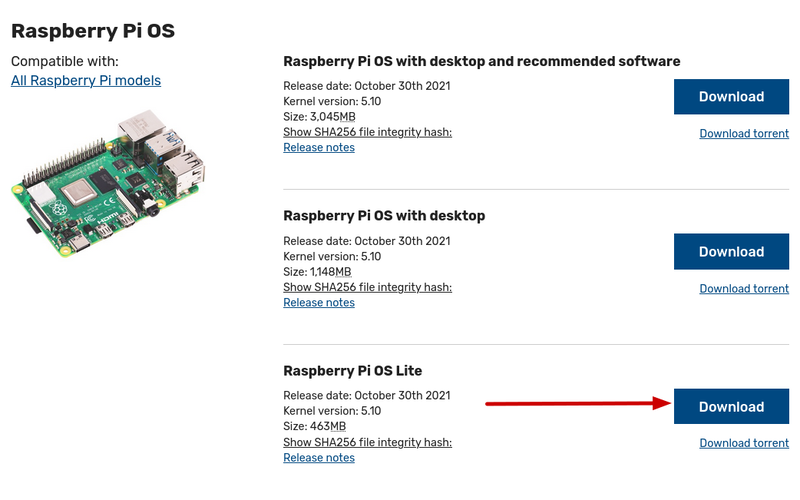
Write on the SD micro card
We extract the content from the downloaded archive en we write it on our micro SD card.
unzip -c path_to_archive.zip
sudo dd if=path_to_my_image.img status=progress bs=4M of=/dev/my_micro_sd_card_location
Before this install, I used the dd command without the status option, now I do. status=progress display the the writing process state. Sometimes the processus was long, you could wonder if it hasn't crashed. It is a bit more comfortable.
Activate ssh
In the boot partition of our micro SD card, create a file ssh to activate ssh connection.
touch ssh
ssh connection
Once your raspberry Pi is on and connected to your local network, we use nmaps to find its IP address from another computer.
nmap -sP 192.168.1.1/24
The nmap man page well written and comprehensible, by the way.
Which give us:
...
Nmap scan report for raspberrypi (192.168.1.92)
...
192.168.1.92 is the raspberry Pi IP address
We can connect to the raspberry Pi via ssh now. By default, a user pi is created on a raspbian fresh install, its password is raspberry.
ssh pi@192.168.1.92
Change your password
Finally, we change our password for the user pi
passwd
Changing password for pi.
(current) UNIX password:
Enter new UNIX password:
Retype new UNIX password: